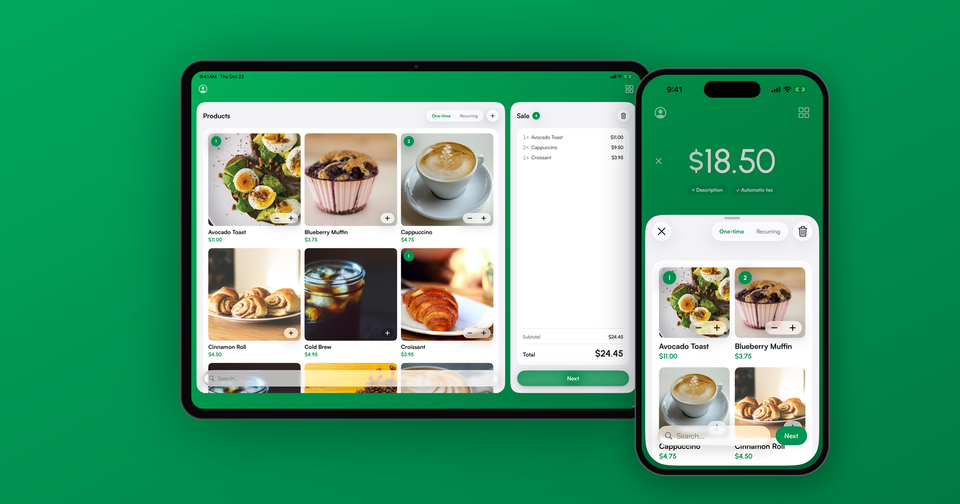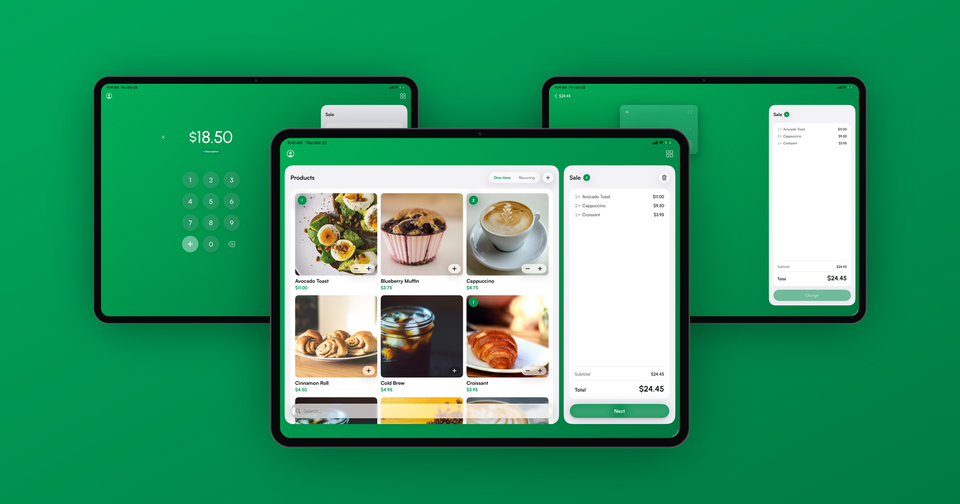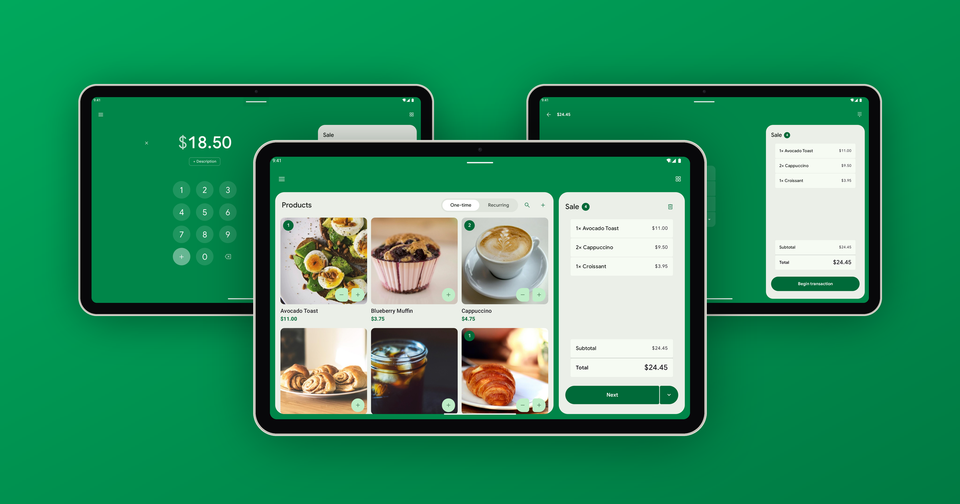

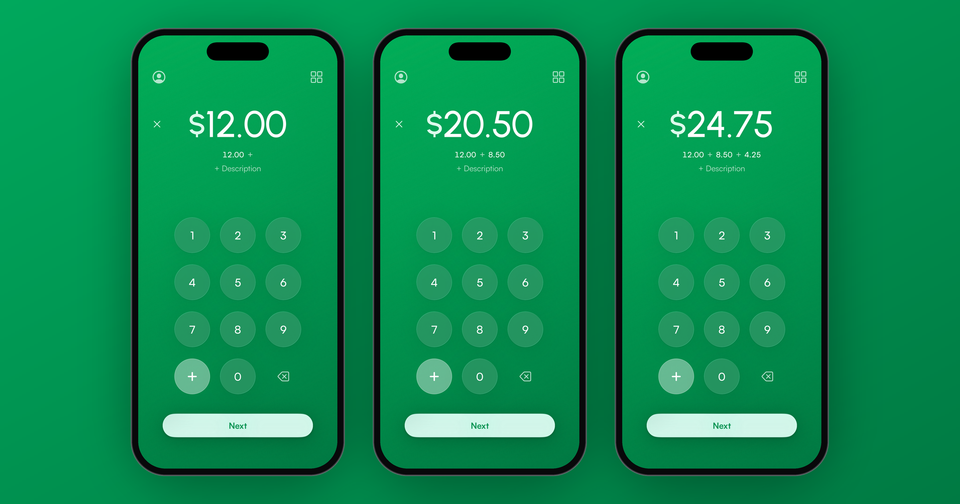
You can now add amounts together right on the keypad in the Payment app. Start typing a price and the Products key in the lower-left corner turns into a +. Tap it, type the next price, and the big number at the top keeps a running total while the individual amounts line up underneath it. When you are done, tap Next and charge the total like any other sale.
This has been one of the most common requests we get from merchants who sell in person without a product catalog. Until now, ringing up three items meant adding them up in your head, on a napkin, or in the phone's calculator app before switching back to Payment to type the total. That is slow at a busy counter, and it is an easy place for a typo to cost you money.
Imagine the following scenario: a customer at your coffee cart orders a $12.00 bag of beans, an $8.50 pastry box and a $4.25 latte. Type 12, tap +, type 8.50, tap +, type 4.25. The screen shows $24.75 with 12.00 + 8.50 + 4.25 right underneath it, so you and your customer can both check the math before the card comes out.
How do I fix a mistake?
The delete key works backward one keystroke at a time, including the + itself. If you typed the wrong second price, tap delete until it is gone and type it again. The amounts before it stay put. To start over completely, tap the X next to the amount, or press and hold delete, and the whole sum clears in one step. Once the screen is back to zero, the Products key returns.
In addition, a stray + at the end does no harm. If you type 5.00 + 8.00 + and then tap Next, the app ignores the empty last amount and charges $13.00.
What happens to tax, tips and fees?
The app treats the sum exactly as if you had typed the total yourself. Your tax rate, service fee, coupon and tip are all applied once, to the total, the same way they always have been. Nothing about how the sale is charged changes, which is the point. The + key only changes how you get to the number.
Can I see the individual amounts later?
Yes. When a sale is built from two or more amounts, the app saves them on the payment in Stripe under a metadata key called amount_terms. You will find it on the payment in your Stripe Dashboard, written in cents, so our coffee order above shows up as 1200+850+425. Your customer's receipt shows the total, the same as any other typed sale.
The amounts are saved for card payments, whether the card is tapped, inserted, keyed in or taken offline. Cash sales and emailed invoices record the total only.
Can I mix products with typed amounts?
Not in the same sale. The + key only appears once you have started typing, and the Products key comes back as soon as the amount is cleared. If you need a product from your catalog and a custom amount on one sale, the simplest approach for now is to add a product to your Stripe catalog with a price you can set at checkout.
Is it on iPhone and Android?
Both. The + key is in version 15 of the Payment app for iPhone, iPad and Android, and it works in every currency the app supports. On iPhone, a small tip points it out the first time it appears. With a keyboard attached to an iPad or an Android tablet, the + and = keys on the keyboard add an amount too. On Android, it arrived alongside a full redesign of the app.
There is no setting to turn on. Update the app, type a price, and the + is there.