A common question from new reader owners is some version of "my reader won't show up." Oftentimes, it's because the reader was paired in the phone's Bluetooth settings first. Stripe readers don't pair like headphones. The Payment app finds and connects to them itself, and pairing in Settings can actually get in the way. Here's how connecting works on iPhone, iPad and Android, for both Bluetooth readers and the larger smart readers.
How do I connect a Bluetooth reader on iPhone or iPad?
Bluetooth readers are the pocket-sized ones: the Stripe Reader M2 in the US and the BBPOS WisePad 3 everywhere else.
- Turn the reader on and keep it close to your phone or iPad.
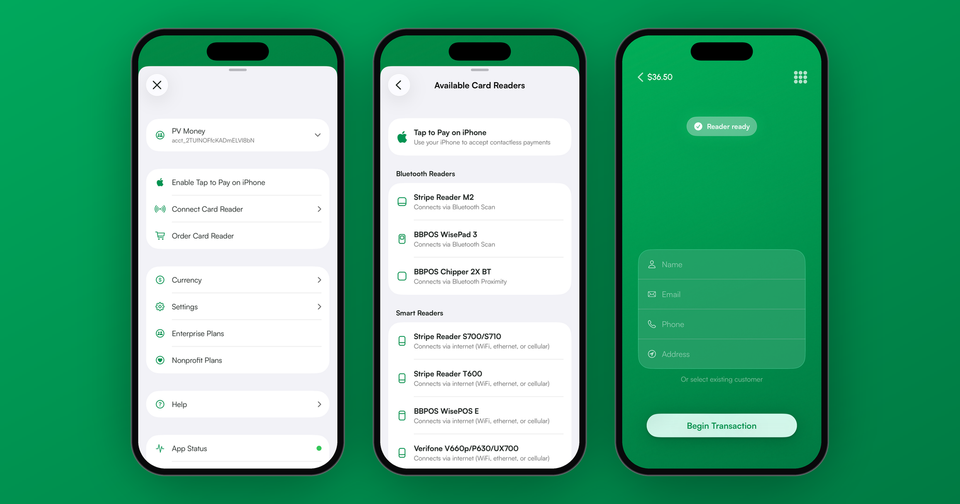
- Tap the person icon at the top left of the app, then Connect Card Reader.
- Choose your reader model under Bluetooth Readers.
- Tap your reader's serial number when it shows up in the list. You'll find the serial on the back of the reader.
The first time you connect, you'll be asked to confirm an address for the reader. Stripe links every reader to a location so it's set up for your region, and it doesn't need to be a storefront. In most cases the app fills it in from your Stripe account for you.
How do I connect a reader on Android?
On an Android phone or tablet, tap Connect reader at the top of the keypad, then Bluetooth reader. Pick your reader from the Select reader list and choose a location if asked. Once a reader is connected the button goes away, so to get back to it later, open the menu and tap Card reader. You'll need to allow the app to use Bluetooth and location the first time, since Android requires both to find nearby readers.
What about smart readers like the S700 or WisePOS E?
Smart readers connect over the internet instead of Bluetooth. Connect the reader to Wi-Fi (or Ethernet, or cellular on the S710) first, and make sure your phone is on the same Wi-Fi network. Then register it once:
- iPhone and iPad: Connect Card Reader, choose the reader under Smart Readers, then tap Register. Pick a location and enter the registration code shown on the reader.
- Android: Connect reader, then Register new Terminal, and enter the three-word code from the reader's screen.
After that, the reader shows up in the list whenever it's online. If you'd rather skip the phone entirely, the Payment app can also run right on the Stripe Reader S700 and S710.
Why is my reader updating?
Stripe sends readers software updates, some of which are required for security. A required update installs when you connect and can take as long as 10 minutes, so it's worth connecting a new reader the night before your first event rather than five minutes before. The reader needs to be charged to at least 50% to update. Optional updates can be skipped for a week if you're in the middle of a rush.
Can the app reconnect automatically?
Yes. After your first connection, the app asks whether to connect to that reader each time you open the app. Choose Always connect and the app will find it on its own whenever it's nearby and turned on. You can change this later with the Auto-connect card reader setting.
My reader still won't connect. What now?
- It doesn't show up at all. Make sure Bluetooth is on and the reader is charged and awake. If you paired it in your phone's Bluetooth settings, remove it there and try again from the app.
- "This reader is connected to another device." A reader can only talk to one phone at a time. Disconnect it in the app on the other phone first.
- The battery is too low. Charge it for a bit, especially if an update is waiting.
- A smart reader can't be reached. Check that the reader and your phone are on the same Wi-Fi network, not one on Wi-Fi and the other on cellular.
Still deciding which reader to buy? We compared every option here. Every reader that works with the Payment app, with prices and availability: Stripe card readers.