
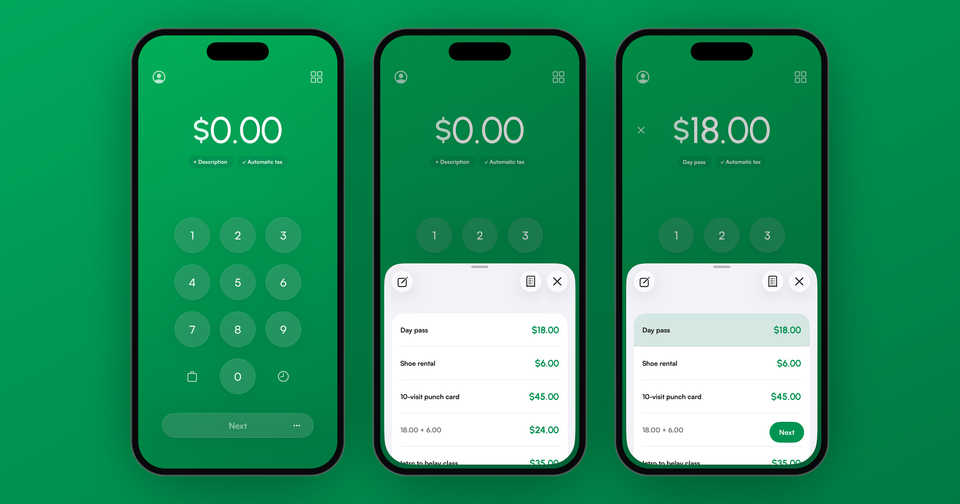
If you ring up the same sale over and over, you no longer have to type it every time. When the amount in the Payment app is at $0.00, the delete key in the lower-right corner of the keypad turns into a clock. Tap it and a list of your recent sales slides up. Tap one, its amount and description fill in on the screen above, and you tap Next to charge it like any other sale.
A lot of merchants using the app sell a handful of things at the same few prices all day long, and many of those sales are typed by hand rather than rung up from a product catalog. Typing $45.00 and "Punch card" for the fortieth time is slow when there is a line, and every retype is another chance to hit the wrong key.
Imagine the following scenario: you run a climbing gym's front desk, and most of the day is $18.00 day passes, $6.00 shoe rentals and the occasional $45.00 punch card. At $0.00, tap the clock, tap "Day pass", tap Next. Your customer is presenting their card before you would have finished typing the description.
What shows up in the list?
The last 50 sales completed on that device, with repeats collapsed into one row. The sales you charge most often sit at the top, then everything else, newest first. It covers every way of building a sale on the keypad:
- A typed amount, with its description if you added one
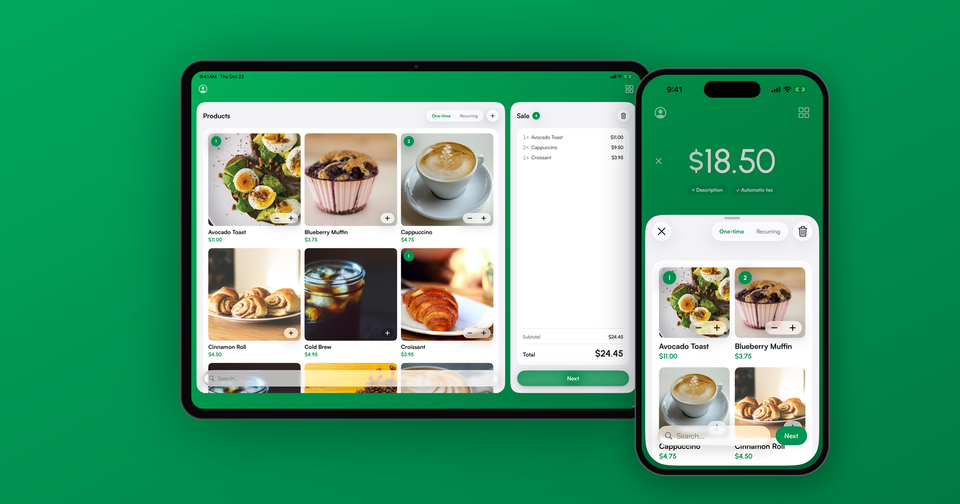
- A cart of products, shown as "2× Water · 1× Chips"
- A sum built with the + key on the keypad, shown as the individual amounts
Invoices, payment links and subscriptions are not saved to the list.
What happens when I tap a sale?
The amount and description fill in right away, and the list stays open so you can see them land. Picked the wrong one? Tap a different row and it replaces the first. One tap on delete undoes the pick entirely.
Only the sale itself comes back. Sales tax, your service fee, the tip, any coupon and the customer are all worked out fresh, exactly as if you had typed the sale yourself. A cart is rebuilt from your current Stripe catalog, so if you have raised a price since, it refills at the new price and the total shows it before you tap Next. If a product has been archived or hidden in the meantime, that row is dimmed, and tapping it tells you why.
Typed amounts and sums work offline, the same as typing them. Carts generally need a connection to check your current prices.
Can I clean up the list?
Yes. Swipe left on a row to delete it, or tap the edit button at the top of the list to select several at once or Clear All.
Swipe right on a typed sale to save it as a product. The new product form opens with the description as the name and the amount as the price, so a sale you keep repeating can become a real item in your Stripe catalog in a couple of taps. We covered what products can do in selling your Stripe products at the counter.
Who can see my history?
The list is saved on the device only, separately for each Stripe account in the app. It is not synced to your other phones or tablets. If your team members sign in with their own logins, each one sees only the sales they rang up on that device, never another employee's descriptions. Removing the account from the app deletes its history.
A small fix to typing over an amount
While building this, we fixed a long-standing annoyance. If an amount was already on screen when you started typing, such as a default amount from Settings, the app used to add your digits onto the end of it. A $5.00 default followed by a 2 became $50.02, which is not what anybody means. Now, typing over an amount you did not type yourself replaces it, the same way a calculator does.
If you use a default amount, your sales start above $0.00, so the clock does not appear right away. Press and hold delete to clear the amount, and the clock comes back.
Availability
Recent sales is in version 15.1 of the Payment app for iPhone, iPad and Android. There is no setting to turn on. Update the app, make a sale, come back to $0.00, and the clock is there. On iPhone, a small tip points it out the first time it appears.